A DLP projector can show flicker, incorrect color, no signal, heat warnings, fan noise, or fixed bright and dark dots. Those symptoms do not all come from the DLP chip, and they should not be handled by opening the case at home.
Use the same source, cable, file, and projector mode while you change one variable at a time. The goal is to learn whether the symptom follows the source, connection, setting, environment, or projector.
Quick answer: Start with a known test image and a direct cable. Restart the source and projector, confirm the selected input and supported resolution, then test another source and cable. For heat or fan warnings, turn the unit off, unplug it, let it cool, and check only the user-accessible vents or filter described in the manual. Fixed dots, grinding noises, burning odor, repeated thermal shutdowns, or internal color-wheel symptoms require qualified service.
What DLP Means—and What It Does Not Diagnose
Texas Instruments describes the digital micromirror device, or DMD, as an array of microscopic mirrors that tilt to control reflected light. A complete DLP chipset also includes a controller and, depending on the design, power-management components.[1]
That architecture helps explain why a fixed bright or dark point can differ from a cable or input problem. It does not mean every flicker, color error, or shutdown is a failed DMD. The light source, optical path, source timing, cable, power system, thermal design, and firmware can produce different symptoms.
1. DLP Projector Shows No Signal
Confirm that the projector is on the intended input, then bypass docks, receivers, splitters, and switchers and connect the source directly.
- Select the correct HDMI, USB-C, or other input.
- Wake and unlock the source device.
- Reconnect both ends of the cable.
- Try a known-working cable of appropriate specification and length.
- Set the source to a resolution and timing listed in the projector manual.
- Test another source on the same input.
- Test the original source on another display.
For USB-C video, connector shape alone is not enough. BenQ advises users of applicable models to verify DisplayPort Alternate Mode support and test a USB-IF-certified cable.[3]
For a fuller workflow, use our device-to-projector connection troubleshooting guide.
2. The Image Flickers
Determine whether the projector menu flickers as well as the external picture. If both flicker, the fault is more likely inside the projector or its power path. If only one HDMI source flickers, test its cable, adapter, timing, and input. If flicker begins after warm-up, record the elapsed time, mode, and room conditions, and stop if a heat warning appears.
Use a direct connection and supported resolution and refresh rate. Many compact DLP projectors use LED or laser illumination and have no user-replaceable lamp. Do not open the enclosure to reseat cables or inspect a color wheel.
3. Colors Look Wrong
Start with a neutral image containing grayscale, skin tones, and solid red, green, and blue patches. Check HDR/SDR, color range, picture mode, cable, adapter, and whether the menu has the same cast. If the menu is normal but one source is tinted, the source format or signal path is the stronger suspect. If the menu and every source share the same sudden error, stop using the projector and contact service.
4. The Projector Is Blurry or One Area Will Not Focus
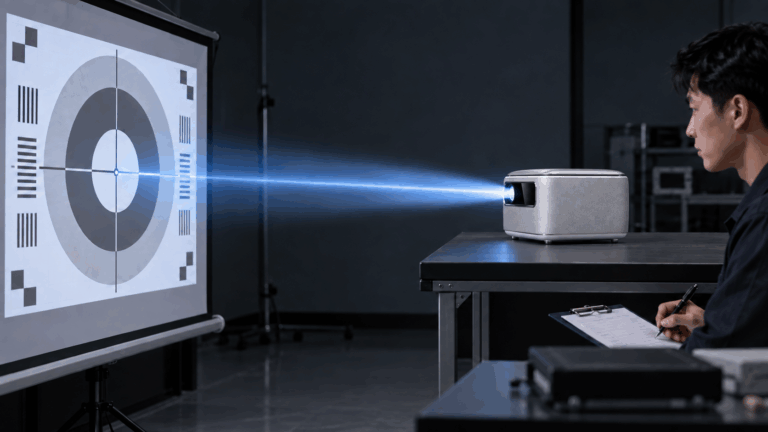
Let the projector reach operating temperature, then use a focus grid across the full image. Remove protective film, clean only the external lens as directed, place the projector square to the screen, minimize digital keystone, adjust focus, and test within the supported throw range. If one area remains blurred, photograph the full grid and contact support. Do not disassemble the lens or optical engine.
For purchasing decisions, use an ANSI-lumens and image-quality test plan.
5. The Projector Overheats or Shuts Down
Turn the projector off, unplug it, and let it cool. Keep intake and exhaust openings clear and provide the spacing required by the manual. Epson warns that blocked ventilation can cause overheating and says to turn off and unplug before cleaning; it also warns users not to open covers except where the manual permits it.[2]
Stop using the projector if a temperature warning returns, the fan does not start, the unit repeatedly shuts down, or there is burning odor, smoke, liquid exposure, or a damaged power connector. Never defeat thermal protection or repeatedly restart the projector.
6. The Fan Is Unusually Loud
Compare noise at the same mode, room temperature, and distance. Check unobstructed vents, a stable surface, the specified operating range, and whether an external object touches the enclosure. Turn it off for clicking, scraping, or grinding, or when noise accompanies image loss or shutdown. Do not open the case or tighten internal screws.
7. Bright, Dark, or Flickering Dots Stay in the Same Place
Use full-screen white, black, gray, red, green, and blue patterns. Confirm that the dot remains at the same projected pixel and does not move with content. TI DMD data sheets define bright, dark, and unstable pixels for particular devices and controlled inspection conditions.[4] Those component specifications are not a universal projector warranty policy.
Record test patterns, image size, distance, focus, mode, warm-up time, dot color, screen position, and fixed-position photographs. Do not press the lens, shake the projector, or attempt to clean the DMD.
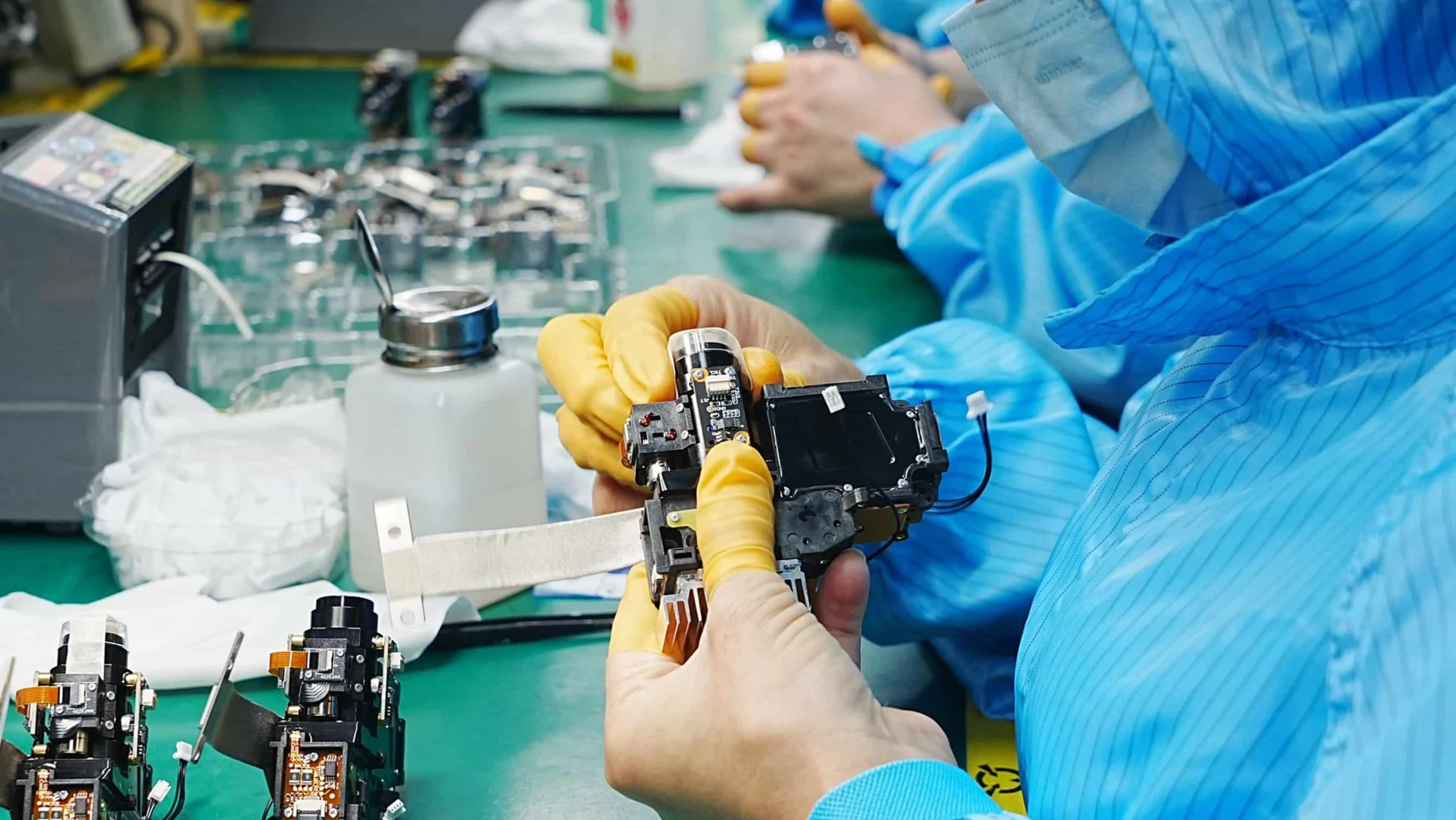
8. The Projector Freezes, Restarts, or Loses Settings
Separate an application failure from a complete power restart. Record whether the fan and indicators change, whether the boot logo reappears, and whether the fault follows one app or input. Close the app, restart normally, check storage, record firmware, and follow only the model’s official update procedure with stable power and network conditions.
See TOUMEI projector software update steps and support information, and verify that they apply to the exact model.
Symptom-to-Next-Step Table
| Observation | Safe next check | Likely area—not a final diagnosis |
|---|---|---|
| No signal on one source | Direct connection, known cable, supported timing | Source, adapter, cable, or input negotiation |
| Menu stable but HDMI flickers | Another cable/source and standard timing | External signal path |
| Same color error on menu and every source | Photograph, restart once, contact service | Projector image path |
| Unstable only after warm-up | Record time, mode, temperature; check airflow | Thermal or internal hardware |
| Fixed dot on menu and patterns | Capture controlled patterns; contact service | Projected-pixel/DMD or optical issue |
| Fan grinds or smells hot | Power off and unplug | Mechanical/electrical service issue |
For Private-Label Buyers: Convert Symptoms Into Acceptance Tests
An OEM or ODM buyer should not approve “image OK” or “burn-in passed” without a written configuration and test record. Record hardware and firmware revision; source, cable, adapter, resolution, and refresh rate; warm-up and run duration; room temperature and ventilation; focus grid and color patterns; pass/fail criteria; evidence; corrective action; and retest result.

Use the projector sample testing checklist for private-label brands. For project structure, review projector OEM versus ODM scope, costs, and production steps.
Request Sample Support or Discuss Distribution
Send the target market, intended use, proposed model, source devices, and exact symptom or acceptance criterion. Include the configuration, photos or short video, and reproduction steps.
Contact TOUMEI on WhatsApp to discuss a projector sample or distribution project.
Frequently Asked Questions
Can I repair a DLP projector by opening the case?
Not as a routine troubleshooting step. Perform only user-serviceable maintenance described in the exact model manual; use qualified service for internal work.
Does flicker mean the DMD chip has failed?
No. Test the menu, another source, and a direct known-working cable before drawing a conclusion.
Are all DLP projectors lamp projectors?
No. A DLP projector may use lamp, LED, or laser illumination. Follow the specific model instructions.
Can I clean a DLP chip to remove a fixed dot?
Do not attempt this as a user repair. Confirm the dot with controlled patterns and contact qualified support.
References
- Texas Instruments, DLP technology and DMD architecture.
- Epson, projector maintenance and ventilation guidance.
- BenQ, USB-C DisplayPort Alternate Mode troubleshooting.
- Texas Instruments, DMD data-sheet pixel definitions.