
A laptop has one USB-C socket. A portable projector has another. Both ports look identical, so a single cable seems like it should carry the picture and power. Sometimes it can. In other setups, the same cable charges one device and produces no image at all.
The connector shape is not enough to answer a USB-C projector connection question. Video output, USB data and USB Power Delivery (PD) are separate capabilities. The reliable approach is to identify what each port does, then choose the cable or adapter for that exact signal path.
A USB-C Port Can Have Three Very Different Jobs
Video: Sending a Display Signal
For a direct USB-C display connection, the source device and the receiving equipment must support a compatible video mode. A common route is DisplayPort Alternate Mode (DP Alt Mode), which carries DisplayPort video over a USB-C connection. An appropriate USB-C-to-HDMI adapter can convert that signal for a projector with HDMI input. The laptop or phone must actually support video output; the adapter cannot add missing source capability.
Some USB-C implementations use USB4 or Thunderbolt display transport, and docks may convert or route that video through HDMI. The exact modes, maximum resolution and refresh rate depend on the device, adapter, cable and projector input together. An oval port alone establishes none of those specifications.
Power: Charging or Running a Projector
A Type-C charging port may be a power input only. With USB PD, the source and the receiving device negotiate an appropriate voltage and current profile. The power supply must support the required profile and have enough capacity for the projector. A cable that works for charging does not automatically support video.
The published TOUMEI C2000 mini projector specification, for example, describes Type-C charging from a compatible mobile power supply or adapter and lists HDMI 2.0 as a separate input. Its Type-C charging support should not be presented as proof of USB-C video input.
Data: Playing Files From Storage
A USB host port may read a flash drive or other supported storage device. That function is different from using a laptop as an external display source. TOUMEI’s X6 specification, for instance, lists USB Host 2.0 ports and an HDMI 2.0 input separately. Plugging a USB data cable into a USB host port is not equivalent to supplying an HDMI video signal.
How to Connect a USB-C Laptop to an HDMI Projector
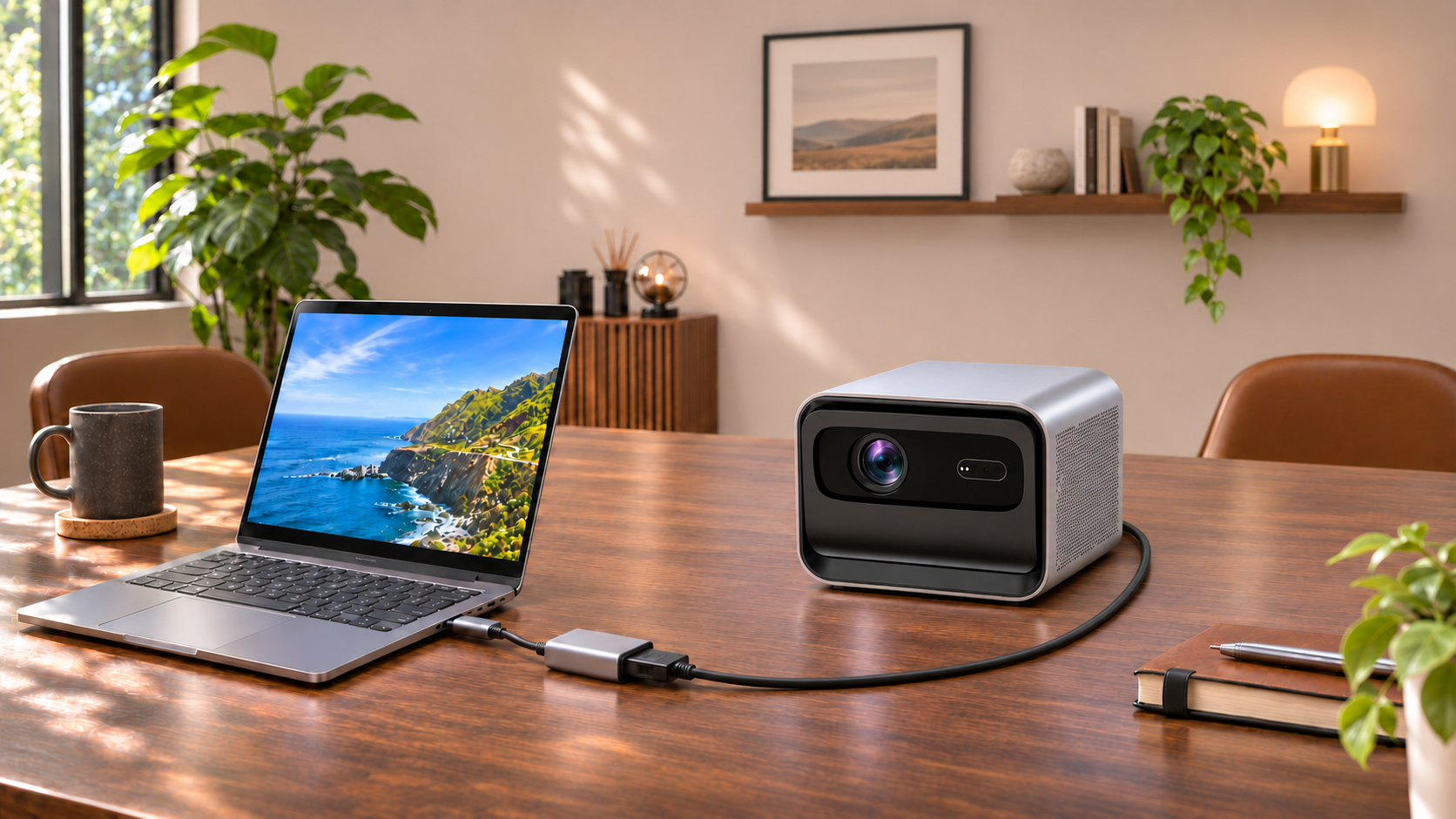
Start by finding the laptop’s documented video-output capability. Look for DisplayPort Alt Mode, USB4 display support or a compatible Thunderbolt port in its specification. Then check the projector’s actual video inputs, usually HDMI. If the projector has HDMI but no confirmed USB-C video input, use a USB-C-to-HDMI adapter or a dock with an HDMI output.
Connect the adapter to the video-capable USB-C port, then an HDMI cable from the adapter to the projector HDMI input. Select that HDMI input on the projector and choose Duplicate or Extend in the laptop’s display settings. Test the required resolution and refresh rate rather than assuming that a 4K-labeled adapter guarantees 4K operation through the entire chain.
If the laptop’s USB-C port is charging-only or data-only, that adapter path will not work. Use a native HDMI output, a different compatible laptop port, or another explicitly supported connection method. TOUMEI’s device-connection troubleshooting article covers broader setup problems; this guide focuses on USB-C’s distinct transport roles.
What If a Phone or Tablet Has USB-C?
USB-C on a phone does not guarantee wired video output. Check the exact handset’s display-out support before selecting an adapter. A compatible phone can use a USB-C video connection and an appropriate HDMI adapter; a phone without supported display output cannot be made compatible by changing to a more expensive passive cable.
Some projectors support proprietary wired mirroring or wireless casting. Those are separate methods with different app, firmware, network and device requirements. Avoid describing every “USB-C connection” as plug-and-play phone mirroring, especially across differently configured OEM projectors.
Choosing the Right Cable, Adapter or Dock
For USB-C to HDMI video: confirm that the source port supports video, the adapter provides HDMI output, and the HDMI cable supports the display mode you need. Active adapters and multiport docks should specify their supported resolutions and refresh rates.
For direct USB-C to USB-C video: verify video support on both ends and use a cable rated for the required display transport. A basic charge-only lead is not a safe assumption for video.
For USB-C PD power: match the projector’s required power-input profile rather than relying on a generic wattage label. Some power banks show a large total capacity but provide a lower maximum output from each individual port.
For a USB-C dock: check how the dock handles display output, laptop charging and other attached devices at the same time. An adapter can support a function only when its upstream laptop port and downstream equipment support the corresponding signal.
What to Confirm on the Exact Projector Model
Ask for a port-by-port specification for the actual production configuration. For each USB-C socket, record whether it is power input, power output, USB data, video input, or a combination. For PD power, list accepted profiles. For display paths, record direction, video transport, supported modes, tested source devices and known adapter limitations.
Test a production sample with the laptops, phones and docks expected in the room. Record the cable, adapter, resolution and refresh rate used. TOUMEI’s business meeting projection overview adds context for rooms where users regularly change devices.