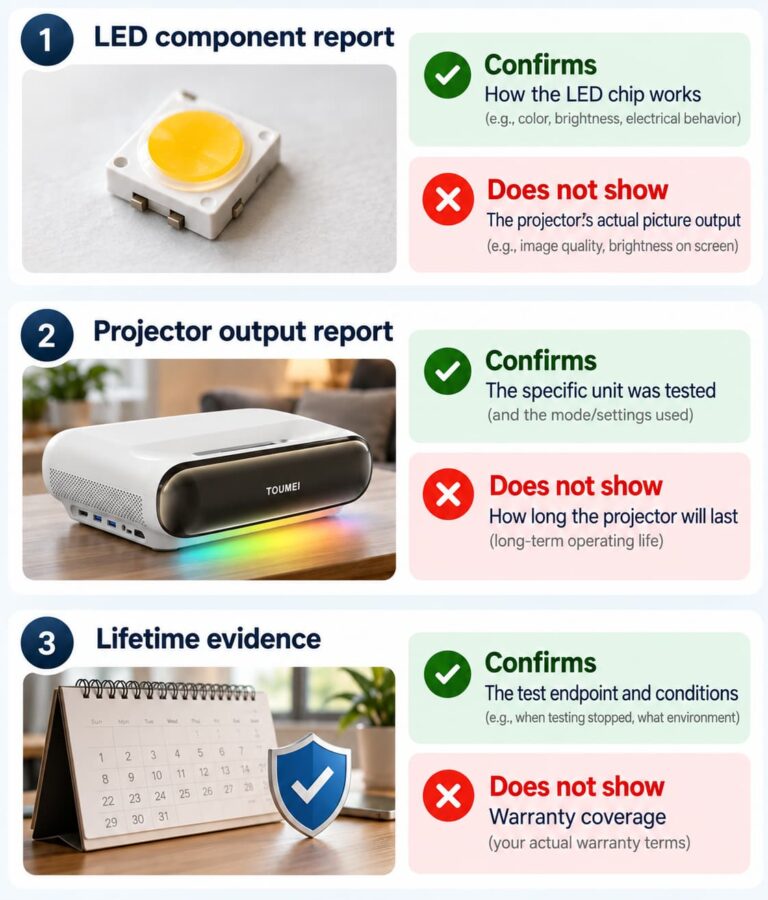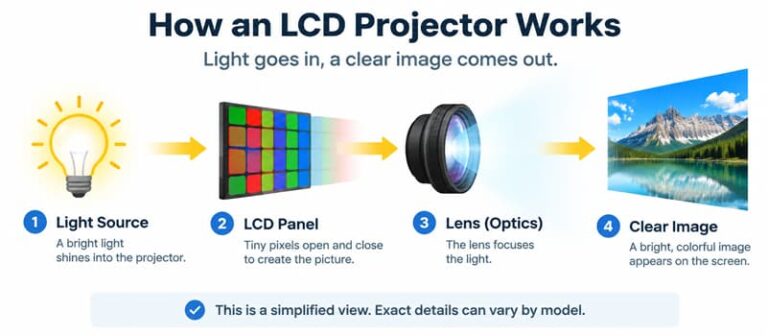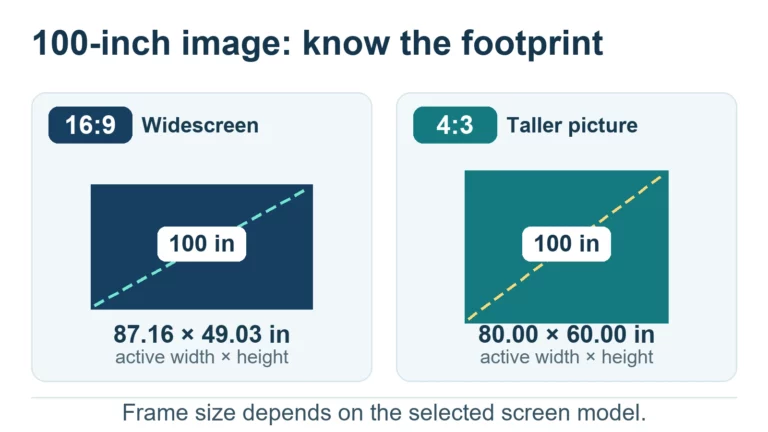
When YouTube is not working on a projector, the projector itself may be operating normally. The failure can come from the YouTube app, an unsupported operating system, an account sign-in problem, the network, casting, the HDMI source, protected-content handling or outdated firmware.
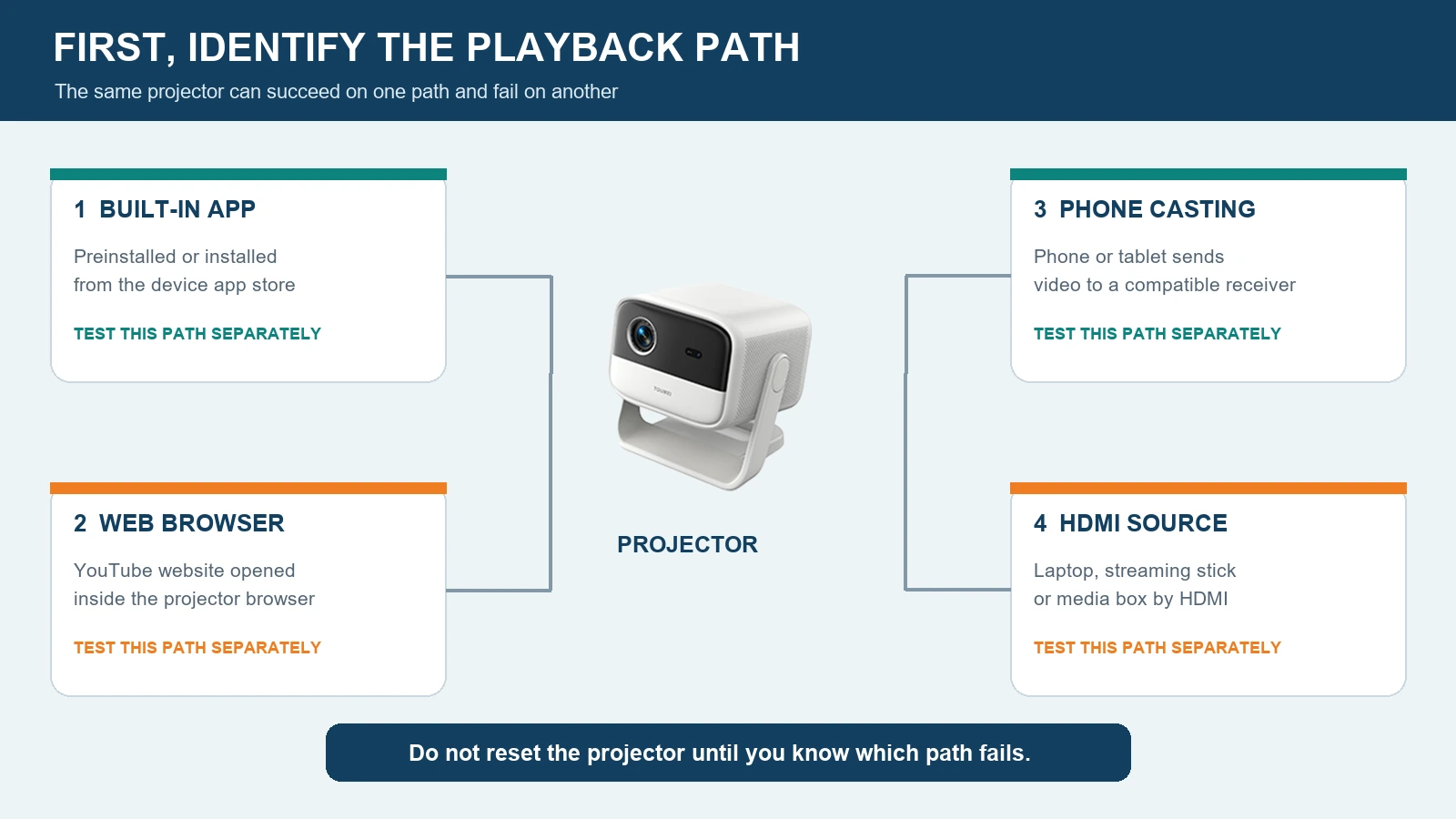
Do not start by downloading an unknown APK or resetting the entire projector. First identify which playback path fails. A direct YouTube app, a browser, phone casting and an HDMI streaming device use different software and hardware layers. A test that separates those layers is faster and safer than trying random fixes.
This guide explains nine checks for home users and a repeatable sample-validation process for projector brands, distributors and private-label buyers.
First identify whether the failure affects the built-in app, projector browser, phone casting or an HDMI source. The same projector can work through one path while another path fails.
Quick Diagnosis
Use the symptom to choose the first test:
| Symptom | Most likely layer to test first | First comparison test |
|---|---|---|
| “YouTube is not supported on this device” | App or operating-system support | Check YouTube's supported-device guidance and test an external streamer |
| App cannot install or update | App store, OS version or storage | Confirm the official app source and available system update |
| App opens but video does not load | Network, date/time, cache or service | Test another network and another supported device |
| Video buffers repeatedly | Wi-Fi quality or bandwidth | Move near the router and reduce video quality |
| Black screen over HDMI | Source output, cable, port or protected-content path | Test a different cable, HDMI port and source resolution |
| Phone cannot find the projector | Casting protocol or network isolation | Put both devices on the same Wi-Fi network |
| Audio plays but picture is black | HDMI negotiation or protected content | Test a non-protected video and a different source device |
| YouTube works after a reboot, then fails again | App, memory or firmware stability | Record uptime and repeat the same playback test |
Google notes that YouTube is available on many smart TVs and streaming devices, but availability can still vary by individual model.[1] A projector advertised as “smart” therefore does not automatically prove that its built-in system supports the current YouTube TV app.
1. Identify How You Are Trying to Play YouTube
Write down which of these paths you are using:
- a YouTube app preinstalled on the projector;
- an app installed from the projector's official app store;
- an APK installed manually;
- YouTube in the projector's browser;
- casting from a phone, tablet or computer;
- a laptop connected by HDMI;
- a streaming stick or media box connected by HDMI.
The correct fix depends on the path. Reinstalling the built-in app cannot repair a faulty HDMI cable. Changing the router cannot make an unsupported operating system compatible with a current app. A factory reset should be a late test because it removes settings without proving the underlying cause.
If an external streaming device works through the same projector and HDMI port, the projector's display system is probably functional. The remaining problem is more likely in the built-in app, operating system, account, network or firmware.
2. Interpret “YouTube Is Not Supported on This Device” Correctly
This message usually indicates a compatibility problem between the current YouTube app and the device model or operating-system version. YouTube states that its current app and older app versions will not work on certain device models. If the app cannot be updated, the device's Android version may no longer support the required app version.[2]
Check:
- the projector model and exact firmware build;
- the operating-system name and version;
- whether the app came from an official device app store;
- whether a system or app update is available;
- whether YouTube lists the device class as supported;
- whether the error affects all accounts and networks.
Do not describe a manually installed application as certified or officially supported unless the relevant platform owner confirms that status for the exact device. TOUMEI does not currently make a general public claim that every model has Google TV, Android, DRM, Netflix or YouTube authorization. Compatibility must be confirmed for the selected model, configuration and destination market.
3. Update the App and Firmware Without Using Unknown APK Files
Use the official update path offered by the projector, device app store or manufacturer. Before updating firmware, confirm that the package matches the exact model and hardware revision. Keep the projector connected to stable power and do not interrupt the update.
YouTube's troubleshooting guidance recommends updating the app and the device's firmware or system software when video errors occur.[3]
A responsible sequence is:
- record the current firmware and app versions;
- restart the projector;
- check the official app store for an update;
- check the manufacturer's support channel for model-specific firmware;
- confirm the recovery procedure before a firmware update;
- retest the same video and account after each change.
Avoid APK files from unverified download links. A file can be obsolete, modified, incompatible with the projector's chipset or unable to receive future security updates. A successful installation also does not establish DRM or service authorization.
4. Check the Network, Date and Time
A projector can show a strong Wi-Fi icon while the connection is still unstable. Test whether other services load, then compare YouTube on a phone connected to the same network.
Check these items:
- automatic date, time and time zone;
- Wi-Fi password and captive-portal requirements;
- whether the projector and phone are on the same SSID;
- router client isolation or guest-network restrictions;
- signal strength at the projector's actual position;
- DNS or regional network restrictions;
- sustained bandwidth during playback.
YouTube lists approximate sustained speeds of 2.5 Mbps for 720p, 5 Mbps for 1080p and 20 Mbps for 4K UHD playback.[4] These are service guidelines rather than a guarantee. Shared networks, interference and weak wireless hardware can still cause buffering.
Try a phone hotspot only as a comparison test. If YouTube works through the hotspot but fails through the normal router, investigate the local network before changing projector firmware.
5. Fix Sign-In and Activation Problems
If videos play while signed out but account activation fails, treat it as an account or device-linking problem.
YouTube supports signing in on many TV devices with a phone or an activation code. Its guidance says the phone and TV device should use the same Wi-Fi network for phone-based sign-in, and recommends restarting the device, router and phone when sign-in continues to fail.[5]
Verify:
- the phone is using Wi-Fi rather than mobile data;
- the activation code has not expired;
- the projector's date and time are correct;
- the account is not restricted by a managed profile;
- the app is the official current version for that platform.
Never enter a Google password into an unfamiliar third-party app or webpage presented by an unverified projector launcher.
6. Diagnose Casting Separately
“Screen mirroring” and Google Cast are not interchangeable. A projector may support Miracast, AirPlay-compatible mirroring or a manufacturer-specific receiver without being a Google Cast device.
For Google Cast, the sender and receiver need compatible software and normally need to be reachable on the same Wi-Fi network. Google's Chrome casting instructions require a compatible Cast receiver, an updated Chrome browser and a strong network connection.[6]
If the projector does not appear as a casting destination:
- confirm the receiver protocol supported by the exact projector;
- place both devices on the same non-guest Wi-Fi network;
- disable router client isolation for the test;
- restart the receiver and sender;
- test another phone;
- compare with an external certified streaming receiver.
If ordinary screen mirroring works but protected video shows a black screen, the restriction may be in the content-protection path rather than the wireless connection.
7. Test HDMI, the Source Device and Protected Content
Trace an HDMI black screen in order: source output, cable and input, firmware and HDCP processing, optical engine, then the projected result. Compare the five tests shown before replacing the projector.
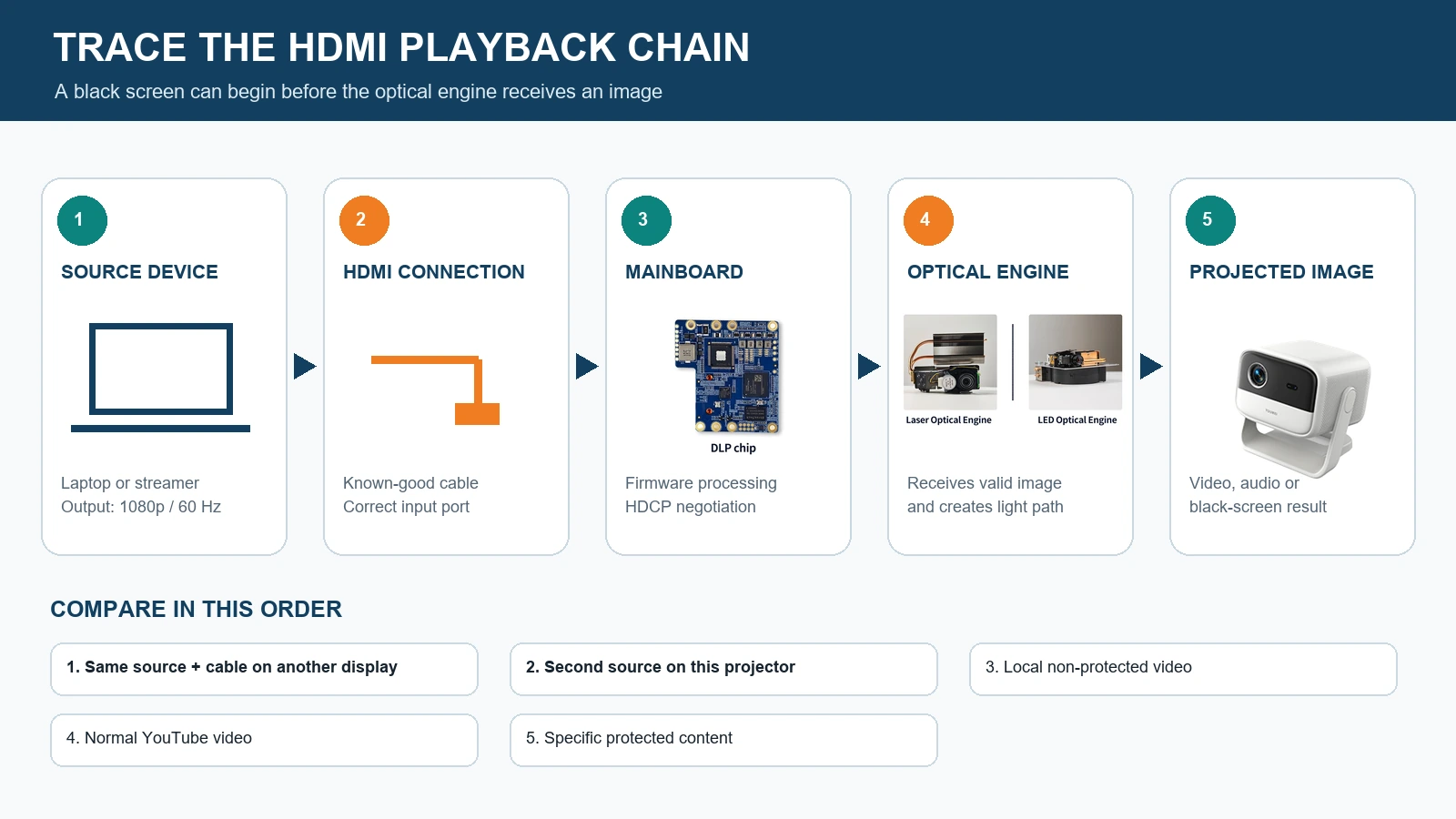
When a laptop or streaming stick is connected by HDMI, test the complete chain:
YouTube service → source device → app/browser → video output → HDMI cable → projector HDMI input → mainboard → image output
Use a known-good cable and test every HDMI port. Set the source temporarily to 1080p at 60 Hz or another resolution explicitly supported by the projector. Disable unusual HDR or deep-color modes for the comparison test. Then test:
- the same source and cable on another display;
- a second source on the projector;
- a local non-protected video;
- a normal free YouTube video;
- the specific paid, live or protected content that fails.
If local and ordinary online video work but protected content fails, collect the exact error and ask the source-device or service provider about the protected-content requirement. Do not claim that changing resolution alone solves every HDCP error.
8. Clear Cache, Restart and Reset in the Right Order
Use the least destructive action first:
- quit and reopen YouTube;
- restart the projector;
- restart the router;
- clear the YouTube app cache, if the system provides that control;
- sign out and sign back in;
- update the app and firmware;
- reinstall the official app if the platform supports it;
- perform a factory reset only after recording configuration and recovery information.
YouTube recommends restarting the device, checking app updates, and testing another supported device when playback problems persist.[3]
A reset that temporarily clears the symptom is useful evidence, but it is not proof that the root cause has been removed. Repeat a long playback test after the reset.
9. Know When to Use an External Streaming Device
An external streaming device is often the lowest-risk solution when the projector's optical performance remains useful but its built-in smart system is no longer supported. YouTube publishes installation instructions for platforms including Google TV, Apple TV, Fire TV, Roku and several smart-TV systems.[7]
Before buying one, confirm:
- the projector has a compatible HDMI input;
- the streamer has adequate power;
- the remote-control workflow is acceptable;
- the selected service supports that streamer in the target country;
- the projector supports the streamer's output resolution and frame rate.
For a new private-label projector project, an external streamer can also serve as a diagnostic reference. It should not be used to hide defects in the projector's advertised built-in software.
A Projector Sample Test Checklist for Brands and Distributors
Actual ATE, burn-in, finished-product and assembly photos support the seven test groups that a buyer should record before approving the final sample and firmware.
For an OEM, ODM or private-label project, “YouTube opens” is not an adequate acceptance test. Use the final intended firmware and test the complete customer journey:
- cold boot and first-time setup;
- network connection on 2.4 GHz and 5 GHz where supported;
- official installation or update route;
- account sign-in and sign-out;
- search, playback, pause, seek and subtitles;
- 30- to 60-minute playback at the target resolution;
- Wi-Fi recovery after interruption;
- HDMI playback from at least two representative sources;
- casting from representative Android and iPhone devices;
- standby, wake-up and repeated restart;
- OTA update and recovery procedure;
- serial number, firmware and production-batch traceability.
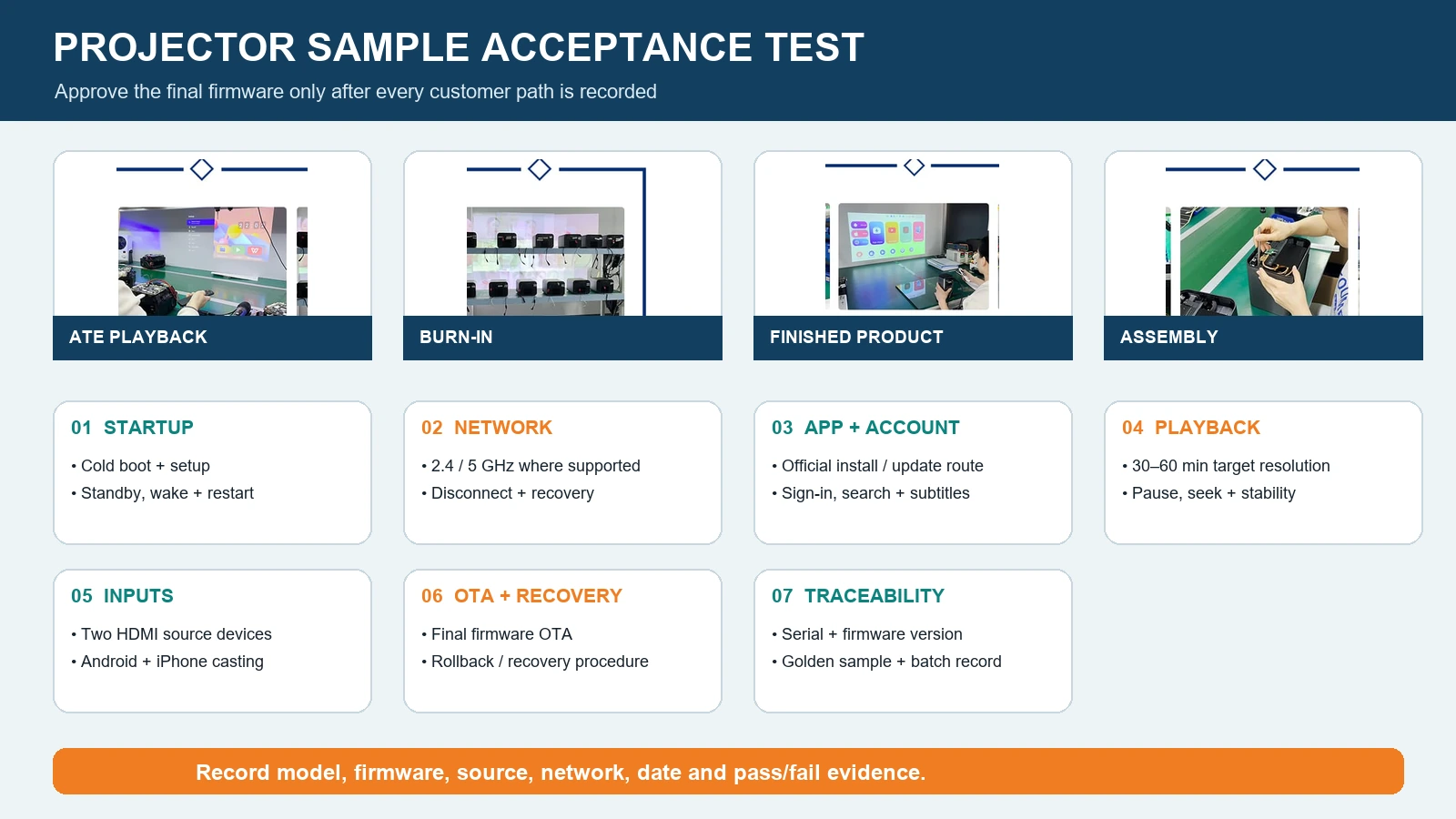
Freeze the approved firmware and configuration as part of the golden sample. Any later mainboard, wireless module, firmware or app change should trigger a defined re-test.
For lower-risk development, review TOUMEI's projector OEM/ODM capabilities and start with an already developed platform that can be verified against the target market. TOUMEI supports firmware maintenance and OTA work within the capability of the selected platform, while third-party app and service authorization must be confirmed separately.
What Evidence Should You Send to Technical Support?
Provide:
- projector model and serial number;
- hardware revision, if available;
- firmware and YouTube app versions;
- country and network type;
- source device, cable and output resolution;
- exact on-screen error text;
- a short video showing the failure path;
- whether the same test works on another network or source;
- the last action taken before the problem appeared.
This evidence helps the support team distinguish a service outage, unsupported app, network fault, HDMI issue, firmware defect and model-specific limitation.
Request a Sample for App and Connectivity Testing
If you are evaluating a projector for distribution or a private-label launch, test the final sample with the target country's apps, networks, phones and streaming devices before approving mass production.
Request a projector sample on WhatsApp
Include the target market, estimated quantity, required operating system, playback sources, casting requirements and preferred launch schedule.
Frequently Asked Questions
Why does my projector say YouTube is not supported on this device?
The current app may no longer support that device model or operating-system version. Record the model, firmware and app source, check official supported-device information, and compare with an external supported streaming device.
Can I install an older YouTube APK on my projector?
An older APK may install but still fail because the service, operating system or security requirements have changed. Avoid unknown download sources and use the official app store or model-specific manufacturer support route.
Why does YouTube play audio but show a black screen?
Test whether the problem occurs in the built-in app, casting or HDMI. For HDMI, compare a different cable, port, source device and supported output resolution. If only protected content fails, collect the exact error for the service or source-device provider.
Why can my phone not find the projector for casting?
The projector may use a different mirroring protocol, or the devices may be separated by guest-network or client-isolation settings. Confirm the supported receiver protocol and place both devices on the same Wi-Fi network.
Should a projector buyer test YouTube before mass production?
Yes. Test installation or update, sign-in, playback, long-duration stability, networking, HDMI, casting, OTA and recovery on the final approved firmware. Record the result as part of the golden-sample approval.
References
- YouTube Help: Supported devices — supports the distinction between generally supported device categories and model-specific availability. Accessed 2026-09-11.
- YouTube Help: Unsupported device models — supports the explanation of unsupported app and operating-system versions. Accessed 2026-09-11.
- YouTube Help: Troubleshoot YouTube video errors — supports the restart, app-update and firmware-update sequence. Accessed 2026-09-11.
- YouTube Help: System requirements and recommended connection speeds — supports the cited approximate bandwidth guidance. Accessed 2026-09-11.
- YouTube Help: Sign in on a smart TV or game console — supports phone sign-in, same-network and restart guidance. Accessed 2026-09-11.
- Google Streaming Help: Cast from Chrome — supports Cast receiver, updated browser and same-network requirements. Accessed 2026-09-11.
- YouTube Help: Download the YouTube app on TV devices — supports the external platform examples and official installation routes. Accessed 2026-09-11.